
$38.99
Add to Cart
mp3 camera+ spy flip camera+ voice recorder in 2GB to 16GB FREE SHIPPING USD38.99
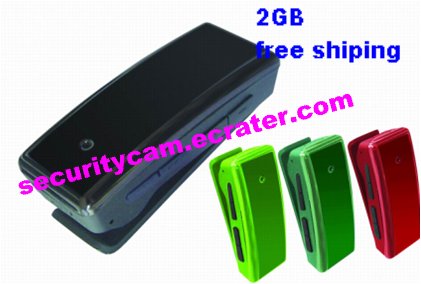
Only 1 available
Details
Shipping: US-Mainland: free (more destinations)
Condition: Brand new
*The store has not been updated recently. You may want to contact the merchant to confirm the availability of the product.
mp3 clip video
1 Introduction
This product is currently first with MP3 playback using the built-in video memory hairpin. Is easy to use, modern technology and the perfect combination of traditional stationery. Product is simple, sleek, beautiful and practical, easy to carry on business, education, security, media, justice, tourism, health, life and other areas of essential utilities, by the majority of users.
Second, instructions
1. Boot: Press PLAY button, the yellow light, that turn into standby mode.
2. Play MP3: In standby mode, press PLAY button, the yellow light starts blinking (slow flash) directly into the MP3 player status.
Note: AUDIO folder in advance copyed MP3 song files.
3. Volume ADJUST: Play MP3 (yellow flashing) the state, short press the Volume + button (1 1) decrease the volume.
4. The next song, a song on the switch: the Play MP3 (yellow flashing) the state, short press a button has changed to the next, a short press on a button to return to the previous 1.
5. Pause playback MP3: playing MP3 (yellow flashing) the state, short press the play / pause button, stop the flashing yellow light turn Always, that is, to pause.
6. End of the moratorium to continue to play MP3: again a short Press play / pause button, then continue to play the current song.
7. Camera start operation: Play MP3 (yellow flashing) the state, long press a button (closest to the headset side buttons), the yellow light flash blue lights flashing after the turn and started recording.
Note: Each time after booting the first camera system will have some preparation time, during which the system is busy, do not carry out other operations, such as repeatedly pressing a button, connect the computer and so on; preparation time and memory, otherwise relevant to memory greater capacity, longer preparation time.
8. Camera save and exit: In the video for the state (blue lights flashing), the short press a button (closest to the headset side buttons), then stop the current video, and save the video content, and blue lights stop flashing, yellow lights, to enter into standby. In the video for the state (blue lights flashing), the only short press PLAY button, you first save the video content, flash, turn the yellow light flashing yellow light (slow flash), but also directly to the MP3 playback mode.
9. Continue to camera: In standby mode, press a button again short (closest to the headset side buttons), blue lights flashing, then start recording.
Note:
a. is recording, if power is low at this time, the machine will first save the video content, and then automatically shut down the machine at this time need to recharge.
b. each camera, the beginning of each video camera and stop the cycle of operation, the system will generate a new video file.
c. Save paper takes time, do not turn the blue lights flash Always before the end of the other operations, such as: press the button, connect the computer and so on; this will lead to just record the video file can not successfully saved, may lead to the generation documents are incomplete, lost, crash and so on.
d. Please adequate lighting environment, maintain the document body vertical and stability, and photo features are maintained over the distance of 50cm, this will be in the right direction, natural colors, features a clear, steady picture image.
10. Camera operation:
a. into the camera preview: play MP3 (yellow flashing) the state, long press on a button (closest to the headset the second side buttons), the yellow light flash, turn the blue light into the camera pre- view.
b. short by taking pictures: the camera preview, the short by clicking on a button (closest to the headset the second side buttons), then the yellow light flashing about, the successful and save a photo shoot; again by clicking on the short a button (closest to the headset the second side buttons), then repeat the operation of a photo shoot.
c. camera out into the MP3 player: the camera preview, simply short press PLAY button, then turn off the yellow light flashing blue lights, but also to the MP3 player into the state.
11. Shutdown mode:
a. Play MP3 in the state, long press PLAY button, indicator light Quanmie complete shutdown.
b. In standby mode, do not do anything, 1 minute automatic shutdown.
c. need to reset or directly off a direct Slide the power switch OFF POWER Office off (usually not recommended customers use the clock method)
Note: In the camera mode, press the button off, the system will automatically save the current image file. Make sure the button long enough a time, until the light goes out.
12. Connected to the computer: shutdown (light Quanmie) or standby mode, you can connect the computer at this time, the computer will eject the removable disk logo, video file directory is: * plate VEDIO RECORD; pull removable disk, click the bottom right corner of the taskbar icon mobile device management, in which unloading of the removable storage device, to be safe to unplug the system recognizes the hardware, then disconnect the machine and the computer.
Note: According to the difference between the computer configuration or system, identifying the removable disk will be slightly different time, please be patient, this is best not to press the button during the operation, so as not to impact on computer recognition hardware. If time does not recognize the removable disk, try to re-insert, if still not recognize the hardware, make sure your operating system, driver, usb interface cable are all normal; unplug the machine, preferably in accordance with the normal operation procedures, so as not to damage the computer or a machine; the machine will automatically shut down after unplugging, do not re-press and off button.
13. Charge: Insert the USB cable to connect computer USB interface, if the battery power is low, then the rules will be flashing yellow light, indicating the state is now in charge; When the battery is full, the yellow light length.
Note: This product is built-in high capacity lithium polymer battery, no memory effect, can be used with with the charge, but the initial use of the first five, and then charge the battery to run out of capacity, in order to activate the battery maximum capacity, access to standard time.
14. Set the time machine system: In order to correctly display the date and the video recording process, real time, requires the following steps to set the current system time.
a. In the standby mode, the machine connected to the computer via USB, until a corresponding removable drive, double-click the removable disk, that is, into the machine's disk root directory.
b. in the root directory of a new text file, the file named time.txt, input to the current date and time format as :2009-08-18 10:08:28; or use the Update Tool 2.0 Updated more convenience.
c. safe to uninstall the removable disk, it will shut down then reboot it, it completed a new set of time
NOTE: Enter the date and time to pay attention to a certain format, with the number of years on a space between number of minutes and seconds, month, day, hour, minute and second to use two-digit numbers that, for example, in May should be written as 05 said. Please refer to the subsidiary's time.txt sample CD. If you set the system time again, repeat the above step. Recommended Tools 2.0 users update the time to update the time.
15. Video file playback: to ensure that the relevant player software already installed (recommended to use wind and thunder audio and video playback). Connected computer, double-click to open the removable disk, into the video folder, select the corresponding video file, the appropriate player software can play.
Note: Video playback, will the process of recording the date and the real time video displayed in the upper left corner of the video image, for example, appears as 2009-08-18 10:08:28
1 Introduction
This product is currently first with MP3 playback using the built-in video memory hairpin. Is easy to use, modern technology and the perfect combination of traditional stationery. Product is simple, sleek, beautiful and practical, easy to carry on business, education, security, media, justice, tourism, health, life and other areas of essential utilities, by the majority of users.
Second, instructions
1. Boot: Press PLAY button, the yellow light, that turn into standby mode.
2. Play MP3: In standby mode, press PLAY button, the yellow light starts blinking (slow flash) directly into the MP3 player status.
Note: AUDIO folder in advance copyed MP3 song files.
3. Volume ADJUST: Play MP3 (yellow flashing) the state, short press the Volume + button (1 1) decrease the volume.
4. The next song, a song on the switch: the Play MP3 (yellow flashing) the state, short press a button has changed to the next, a short press on a button to return to the previous 1.
5. Pause playback MP3: playing MP3 (yellow flashing) the state, short press the play / pause button, stop the flashing yellow light turn Always, that is, to pause.
6. End of the moratorium to continue to play MP3: again a short Press play / pause button, then continue to play the current song.
7. Camera start operation: Play MP3 (yellow flashing) the state, long press a button (closest to the headset side buttons), the yellow light flash blue lights flashing after the turn and started recording.
Note: Each time after booting the first camera system will have some preparation time, during which the system is busy, do not carry out other operations, such as repeatedly pressing a button, connect the computer and so on; preparation time and memory, otherwise relevant to memory greater capacity, longer preparation time.
8. Camera save and exit: In the video for the state (blue lights flashing), the short press a button (closest to the headset side buttons), then stop the current video, and save the video content, and blue lights stop flashing, yellow lights, to enter into standby. In the video for the state (blue lights flashing), the only short press PLAY button, you first save the video content, flash, turn the yellow light flashing yellow light (slow flash), but also directly to the MP3 playback mode.
9. Continue to camera: In standby mode, press a button again short (closest to the headset side buttons), blue lights flashing, then start recording.
Note:
a. is recording, if power is low at this time, the machine will first save the video content, and then automatically shut down the machine at this time need to recharge.
b. each camera, the beginning of each video camera and stop the cycle of operation, the system will generate a new video file.
c. Save paper takes time, do not turn the blue lights flash Always before the end of the other operations, such as: press the button, connect the computer and so on; this will lead to just record the video file can not successfully saved, may lead to the generation documents are incomplete, lost, crash and so on.
d. Please adequate lighting environment, maintain the document body vertical and stability, and photo features are maintained over the distance of 50cm, this will be in the right direction, natural colors, features a clear, steady picture image.
10. Camera operation:
a. into the camera preview: play MP3 (yellow flashing) the state, long press on a button (closest to the headset the second side buttons), the yellow light flash, turn the blue light into the camera pre- view.
b. short by taking pictures: the camera preview, the short by clicking on a button (closest to the headset the second side buttons), then the yellow light flashing about, the successful and save a photo shoot; again by clicking on the short a button (closest to the headset the second side buttons), then repeat the operation of a photo shoot.
c. camera out into the MP3 player: the camera preview, simply short press PLAY button, then turn off the yellow light flashing blue lights, but also to the MP3 player into the state.
11. Shutdown mode:
a. Play MP3 in the state, long press PLAY button, indicator light Quanmie complete shutdown.
b. In standby mode, do not do anything, 1 minute automatic shutdown.
c. need to reset or directly off a direct Slide the power switch OFF POWER Office off (usually not recommended customers use the clock method)
Note: In the camera mode, press the button off, the system will automatically save the current image file. Make sure the button long enough a time, until the light goes out.
12. Connected to the computer: shutdown (light Quanmie) or standby mode, you can connect the computer at this time, the computer will eject the removable disk logo, video file directory is: * plate VEDIO RECORD; pull removable disk, click the bottom right corner of the taskbar icon mobile device management, in which unloading of the removable storage device, to be safe to unplug the system recognizes the hardware, then disconnect the machine and the computer.
Note: According to the difference between the computer configuration or system, identifying the removable disk will be slightly different time, please be patient, this is best not to press the button during the operation, so as not to impact on computer recognition hardware. If time does not recognize the removable disk, try to re-insert, if still not recognize the hardware, make sure your operating system, driver, usb interface cable are all normal; unplug the machine, preferably in accordance with the normal operation procedures, so as not to damage the computer or a machine; the machine will automatically shut down after unplugging, do not re-press and off button.
13. Charge: Insert the USB cable to connect computer USB interface, if the battery power is low, then the rules will be flashing yellow light, indicating the state is now in charge; When the battery is full, the yellow light length.
Note: This product is built-in high capacity lithium polymer battery, no memory effect, can be used with with the charge, but the initial use of the first five, and then charge the battery to run out of capacity, in order to activate the battery maximum capacity, access to standard time.
14. Set the time machine system: In order to correctly display the date and the video recording process, real time, requires the following steps to set the current system time.
a. In the standby mode, the machine connected to the computer via USB, until a corresponding removable drive, double-click the removable disk, that is, into the machine's disk root directory.
b. in the root directory of a new text file, the file named time.txt, input to the current date and time format as :2009-08-18 10:08:28; or use the Update Tool 2.0 Updated more convenience.
c. safe to uninstall the removable disk, it will shut down then reboot it, it completed a new set of time
NOTE: Enter the date and time to pay attention to a certain format, with the number of years on a space between number of minutes and seconds, month, day, hour, minute and second to use two-digit numbers that, for example, in May should be written as 05 said. Please refer to the subsidiary's time.txt sample CD. If you set the system time again, repeat the above step. Recommended Tools 2.0 users update the time to update the time.
15. Video file playback: to ensure that the relevant player software already installed (recommended to use wind and thunder audio and video playback). Connected computer, double-click to open the removable disk, into the video folder, select the corresponding video file, the appropriate player software can play.
Note: Video playback, will the process of recording the date and the real time video displayed in the upper left corner of the video image, for example, appears as 2009-08-18 10:08:28


 CN, Guangdong
